How to Remove a Person From a Photo: 3 Easy Ways
Remove a stranger, an ex or a photobomber from any photo in seconds: online, on your phone or in an editor, with tips for a natural result.
· 5 min read
The light was perfect, the beach was empty, and then a stranger walked right into your shot. Good news: removing a person from a photo no longer takes Photoshop skills. AI tools now rebuild what was behind them in a few seconds, on your computer or your phone. Here are three easy ways to do it, and the tricks that make the result look natural.
The short answer
- Online, on any device: open an object remover, paint over the person, done.
- On a recent phone: the built-in tools of Google Photos, Samsung Gallery or the iPhone Photos app.
- In a photo editor: Photoshop (Generative Fill, Content-Aware Fill), or GIMP for free.
Before and after, on a real photo:
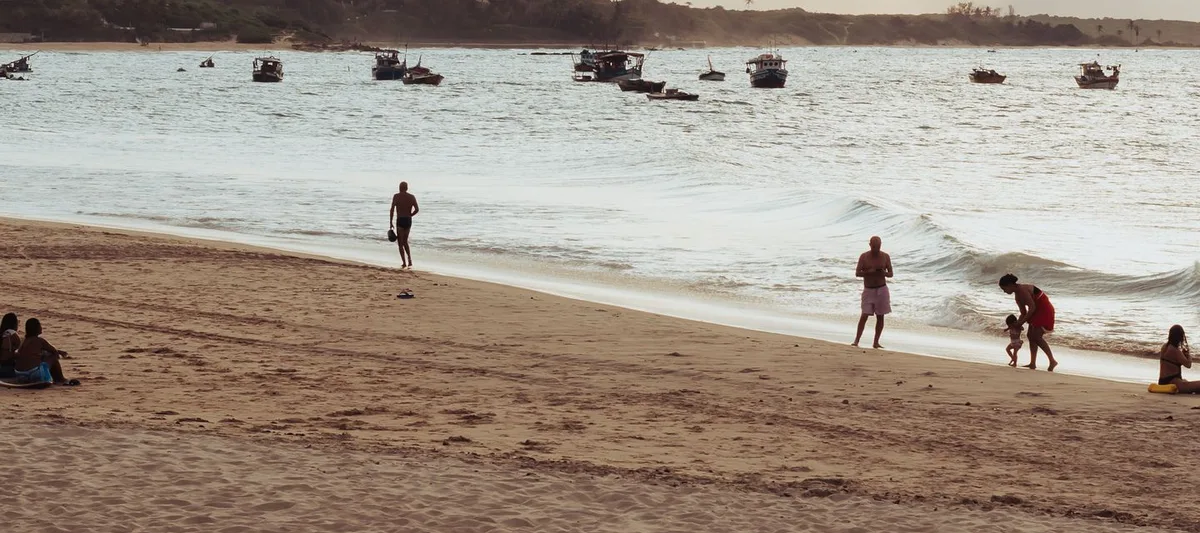 Before
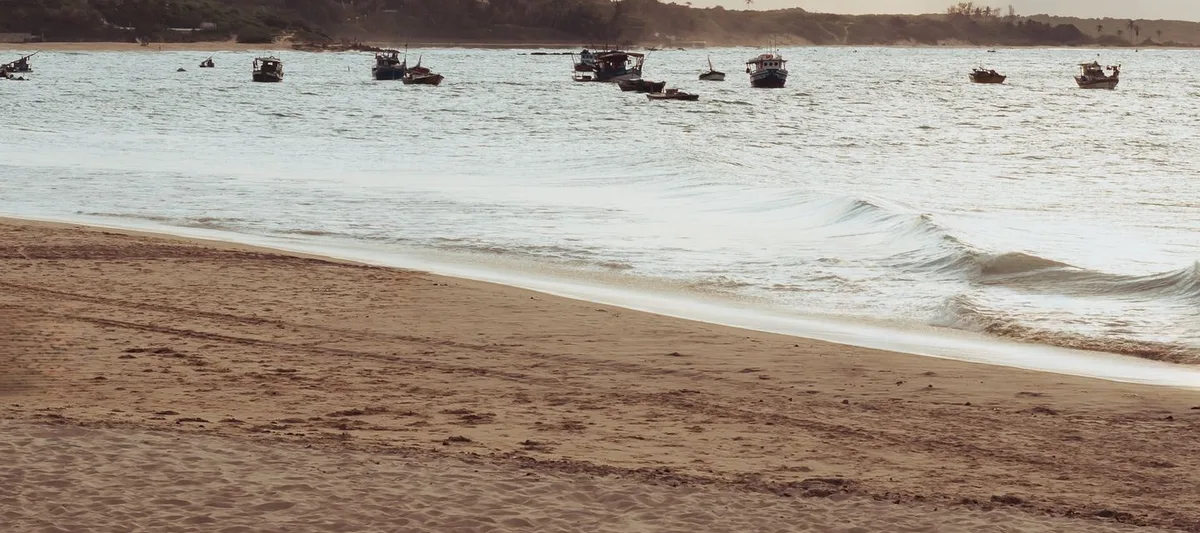 After (AI)
Hover an image to zoom on both at the same spotTap an image to zoom on both
Six people removed from a beach in four passes with our Object remover. Photo: Pexels.
1. Online: the fastest way, on any device
An online object remover works in your browser: nothing to install, and it runs the same on a laptop, a phone or a tablet. With the Tool Corner object remover:
- Open the tool and drop your photo (or paste it with Ctrl+V).
- Paint over the person with the brush. Cover their shadow too, and go a little past the edges.
- Click Remove: the AI fills the area in a few seconds. Not perfect yet? Paint the leftovers and erase again.
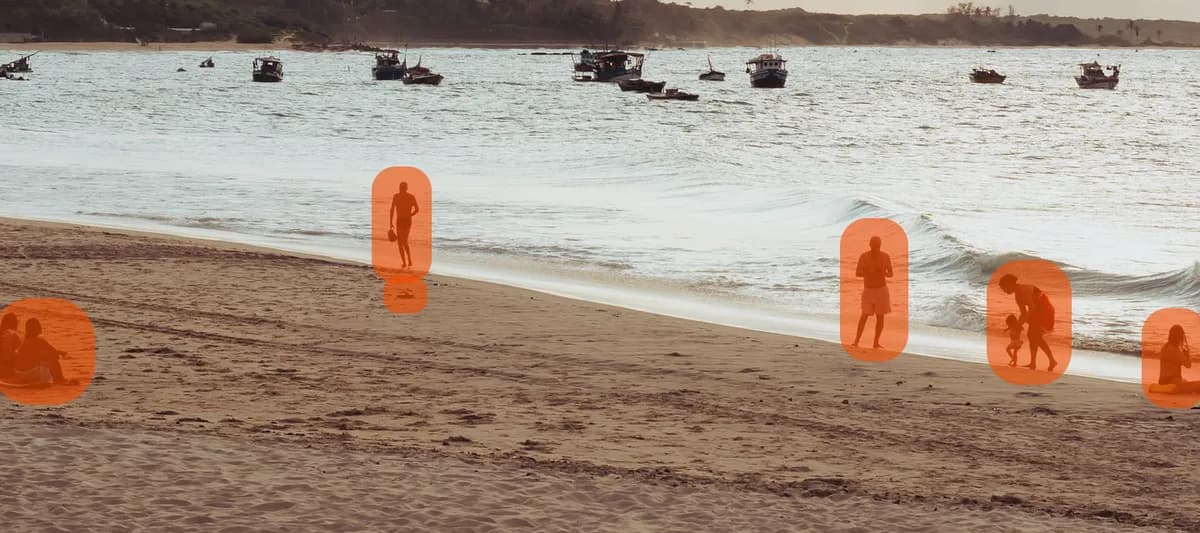
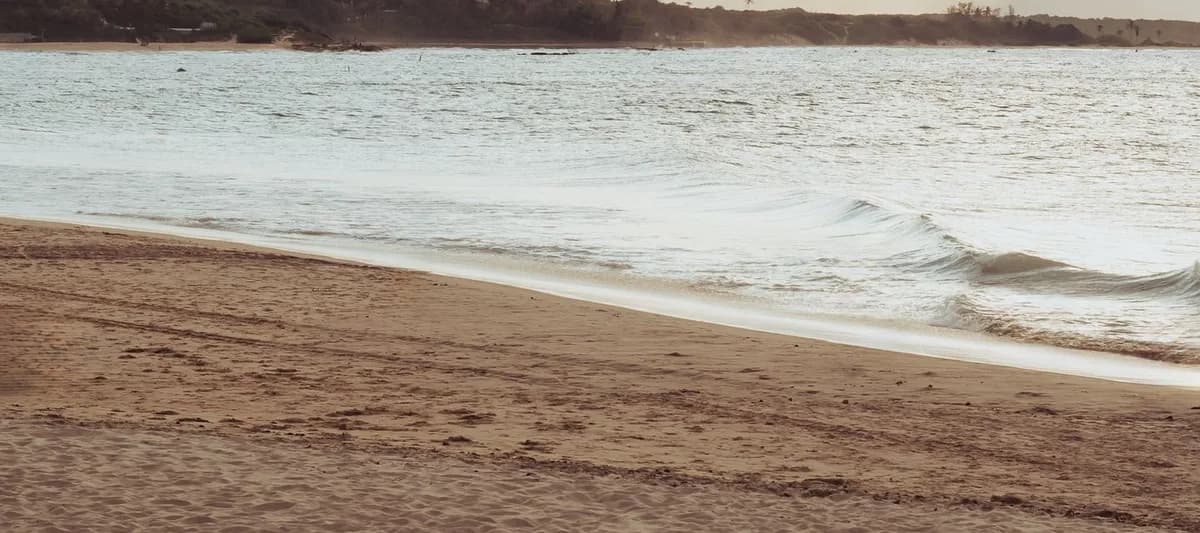
You see a free preview of the result before paying anything, and the full resolution image costs €1.99, without an account or a subscription. It also works on objects: a trash can, a sign, a power line, text, a photobomber. Here, after the people, we removed the boats too:
2. On your phone: the built-in tools
Recent phones have an eraser built into their photo app. Availability depends on the model and the version of the app:
- Google Photos (Android and iPhone): Edit, then Tools, then Magic Eraser. It often suggests the people to remove by itself.
- Samsung Galaxy: in the Gallery, Edit, then Object Eraser or the AI editing tools on recent models.
- iPhone: in the Photos app, Edit, then Clean Up. It needs a model compatible with Apple Intelligence (iPhone 15 Pro and later).
Handy for a quick fix on a photo you just took. If your phone does not have it, or the result is blurry, the online way above works on any phone from the browser.
3. In a photo editor: the most control
- Photoshop: select the person, then Generative Fill or Content-Aware Fill. The most precise option, but it needs a paid subscription.
- GIMP (free): the Heal tool for small objects, or the Resynthesizer plugin for bigger areas. It works, but takes practice.
Worth it for professional retouching. For a holiday photo, the two first ways are much faster.
How AI fills the gap
The AI does not know what was really behind the person: it never saw it. It looks at everything around the painted area (the sand, the waves, the horizon line) and draws what was most likely there, so that textures and lines continue naturally. This is called inpainting.
1. Your photo
with someone in the way2. You paint
over what should go3. The AI looks
at everything around it4. It fills the gap
with what was likely behind
That explains what works well and what does not: the more the background repeats (sky, sea, sand, grass, a wall), the more invisible the result. A face hidden behind someone, or a detailed pattern, has to be invented, and it shows.
7 tips for a natural result
- Paint a little wider than the person: a thin outline left behind is what gives it away.
- Include the shadow and the reflection: a shadow with nobody casting it looks very strange.
- One person at a time on busy photos: each pass gives the AI more clean background to work with.
- Erase the leftovers in a second pass rather than painting a huge area at once.
- Simple backgrounds are easy: sky, water, sand, grass, plain walls. Crowds and detailed patterns are hard.
- Large areas are harder: if the person fills half of the frame, cropping can be the better option (try the image resizer).
- Keep your original, and work on a copy.
Is it OK to remove people from photos?
For your own memories, of course: a cleaner holiday picture, a stranger in the background, an ex you would rather not see on the living room wall. Just keep it honest elsewhere: do not edit photos used as evidence, in the news, or in official documents, and do not use edits to mislead people.
Going further
- Cut out the main subject instead: the background remover gives a transparent PNG.
- An old photo with someone to remove? Erase first, then bring it to life with the photo colorizer.
- Make the result sharper and bigger with the image upscaler.